

Payroll mistakes cost businesses time and money. Getting your QuickBooks payroll setup basics right from the start prevents costly errors down the road.
At Clear View Business Solutions, we’ve seen firsthand how proper setup saves companies hundreds of hours in corrections and compliance headaches. This guide walks you through the essential steps to get payroll working correctly from day one.
Payroll setup in QuickBooks demands precision from the first step. You must establish your payroll company file with accurate business information, configure employee data correctly, and connect your bank account for seamless fund movement. The setup process in QuickBooks Workforce guides you through required information in a logical sequence, but skipping details or entering incorrect data early creates problems that surface during tax filing. Businesses that rush through initial setup spend significantly more time correcting errors later than they would have spent getting it right initially.
Start by signing in as your primary admin and enter your main business address, principal officer details (including name and Social Security number), and your Federal Employer Identification Number. If you operate multiple work locations, add those now to prevent tax withholding errors for employees working in different states. Your state tax account numbers and unemployment insurance rates must be entered before your first payroll run-not after. QuickBooks requires this information to calculate withholdings accurately, and missing state tax numbers causes filings to fail or arrive incomplete.
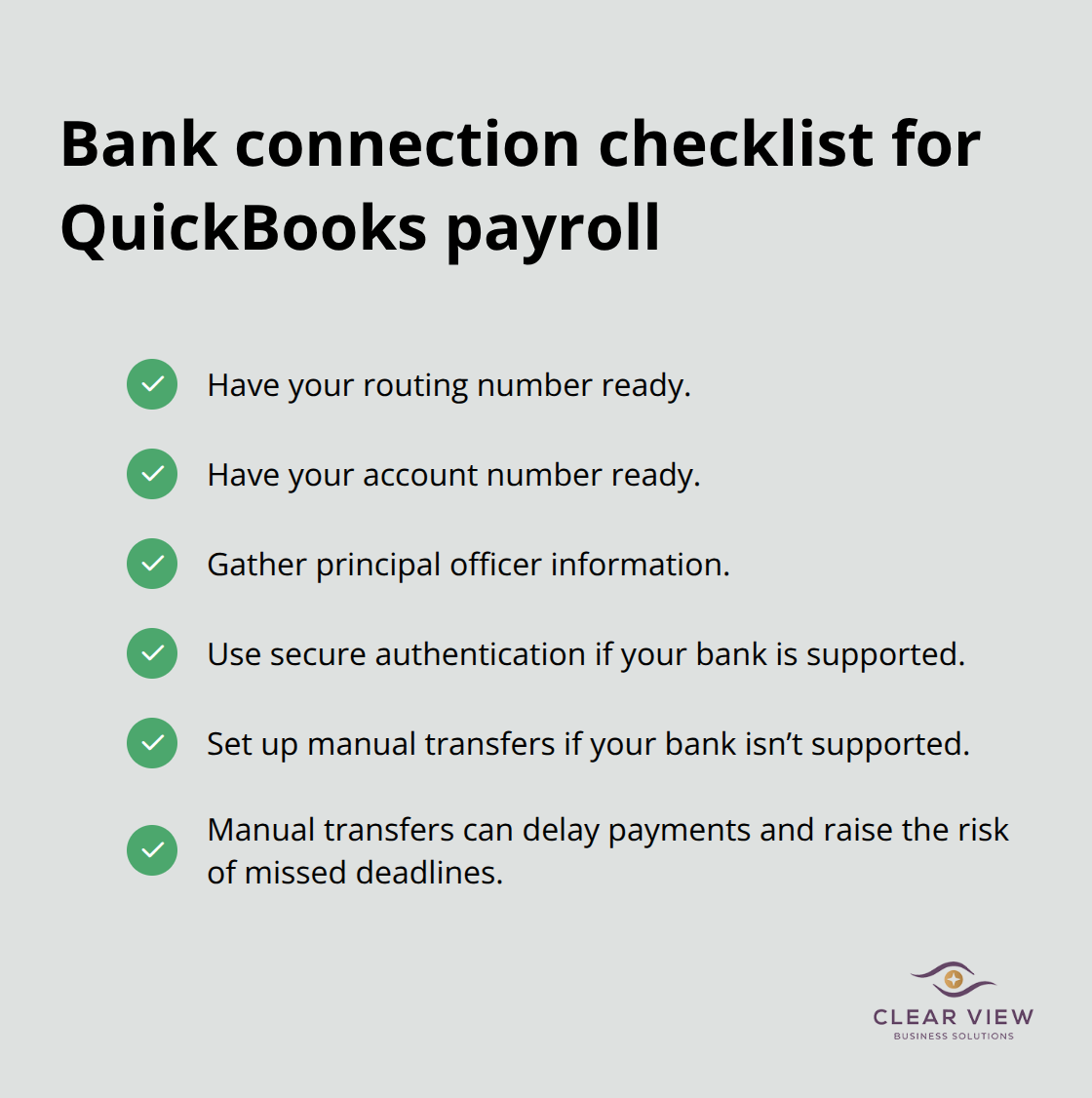
Your bank connection powers both direct deposit and automatic tax payments, making it the most critical integration you’ll establish. Gather your routing number, account number, and principal officer information before starting this step. QuickBooks connects to most major banks instantly through secure authentication, but if your bank isn’t supported, you’ll need to set up manual transfers, which creates delays and increases the risk of missed tax deadlines.
After connecting your bank, verify the test deposits that QuickBooks sends and must match exactly before you authorize payroll processing. Do not proceed with your first payroll until you’ve confirmed these test deposits. Intuit Payments Inc., which handles money movement for QuickBooks, is licensed as a Money Transmitter by the New York State DFS, providing the regulatory oversight that protects your transactions.
If you migrate from a prior payroll provider like ADP, Paychex, or Gusto, import your employee and year-to-date pay history now rather than re-entering everything manually. This single step eliminates data entry errors and ensures your W-2s and tax forms reflect actual wages paid, not estimates or partial records that could trigger IRS correspondence. With your foundation in place, you’re ready to move forward with employee configuration and your first payroll run.
Your first payroll run determines whether everything you configured actually works. Most payroll failures happen here because business owners trust that their setup was correct without validating it before processing real paychecks. QuickBooks Workforce walks you through running payroll, but the system doesn’t catch logical errors like an employee assigned to the wrong pay schedule or a deduction mapped to an incorrect account.
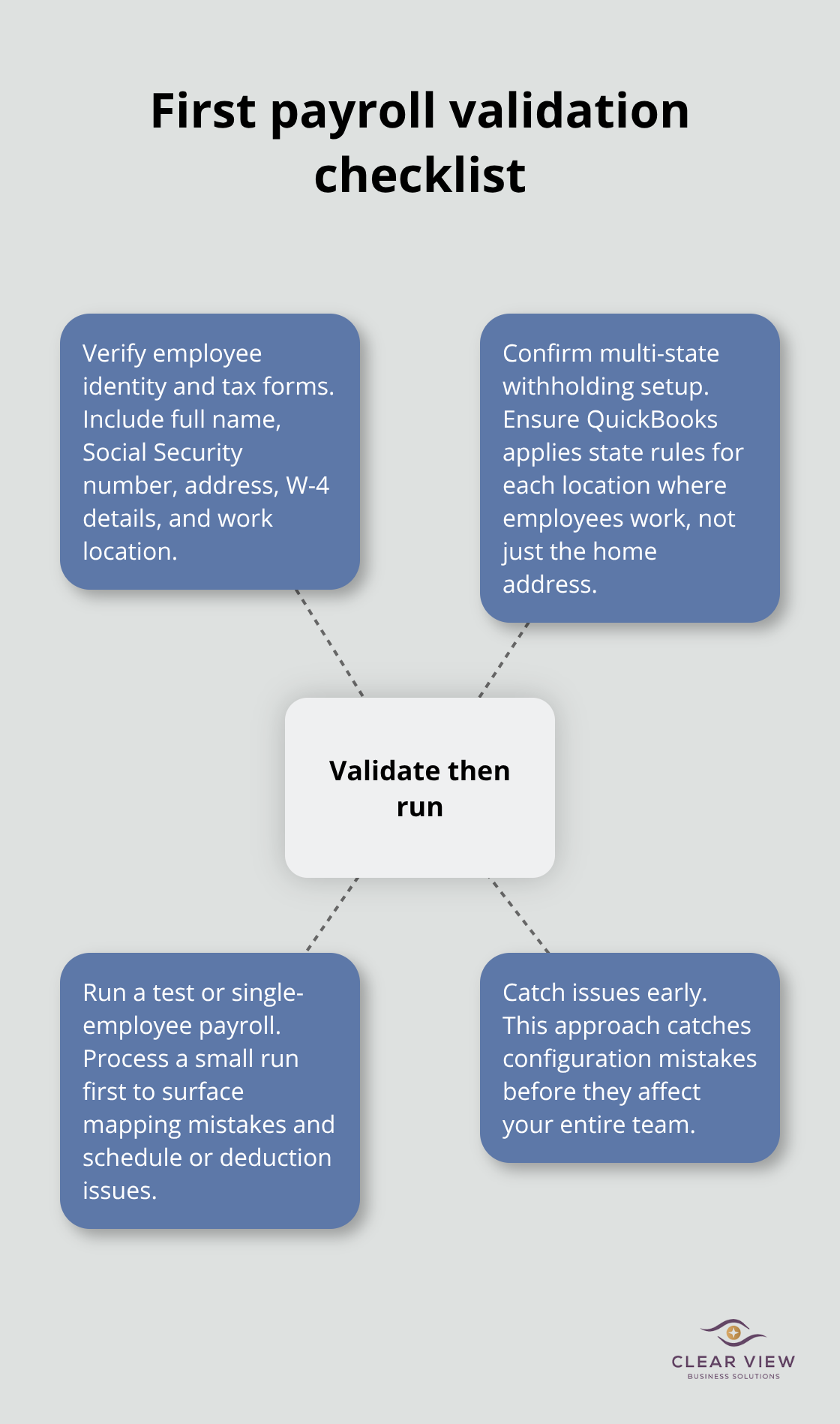
Verify every employee’s data before you process a single paycheck: full name, Social Security number, address, tax withholding forms from their W-4, and work location. For employees working across multiple states, confirm that QuickBooks has configured state withholding rules for each location where they work, not just their home address. Run a test payroll first if QuickBooks allows it, or process payroll for a single employee before running everyone’s checks. This catches configuration mistakes before they affect your entire team.
After processing payroll, compare the calculated gross pay, deductions, and net pay against what you expect manually. If federal withholding seems too high or too low, check that you entered the employee’s W-4 details correctly, including filing status and any additional withholding amounts they requested. State taxes should match your state’s current tax tables, which QuickBooks updates quarterly but may lag behind rate changes announced by your state tax agency. Connect your business bank account before processing payroll so direct deposits post immediately and employees receive paychecks on time. If you’re using paper checks temporarily, understand that you remain responsible for payroll taxes even if your bank hasn’t processed the checks yet.
Your payroll reports reveal whether deductions and withholdings calculate correctly across your entire team. Run the payroll summary report after your first paycheck processes and verify that total gross pay, federal withholding, state withholding, and employer taxes match your expectations. Compare this report to your actual bank transactions to confirm that money left your account for the right amounts on the right dates. If year-to-date totals for any employee don’t match what you know they earned, stop and investigate before processing the next payroll.
Reconcile your payroll accounts monthly against your bank statement, matching every deposit and tax payment. This monthly reconciliation catches errors early and prevents compounding mistakes that become impossible to untangle before tax filing season. Most businesses that face IRS notices or state tax corrections waited too long to spot discrepancies in their payroll records. If you migrated data from a prior provider, reconcile the year-to-date wages and taxes that QuickBooks imported against your final records from that provider. Mismatches here will cause your W-2s and quarterly tax filings to be inaccurate.
Do not file federal Form 941 or state quarterly taxes until your payroll records match your actual payments and deductions. Intuit provides payroll tax filing through QuickBooks Workforce if you’re on Premium or Elite plans, but even with automation, you should review the forms before they’re filed to verify accuracy. For complex corrections or if you’re unsure whether your payroll is set up correctly, a QuickBooks ProAdvisor or payroll specialist can review your setup before your first filing deadline and prevent expensive mistakes that take months to correct with tax authorities. With your first payroll validated and your records reconciled, you’re ready to establish the systems that keep payroll accurate month after month.
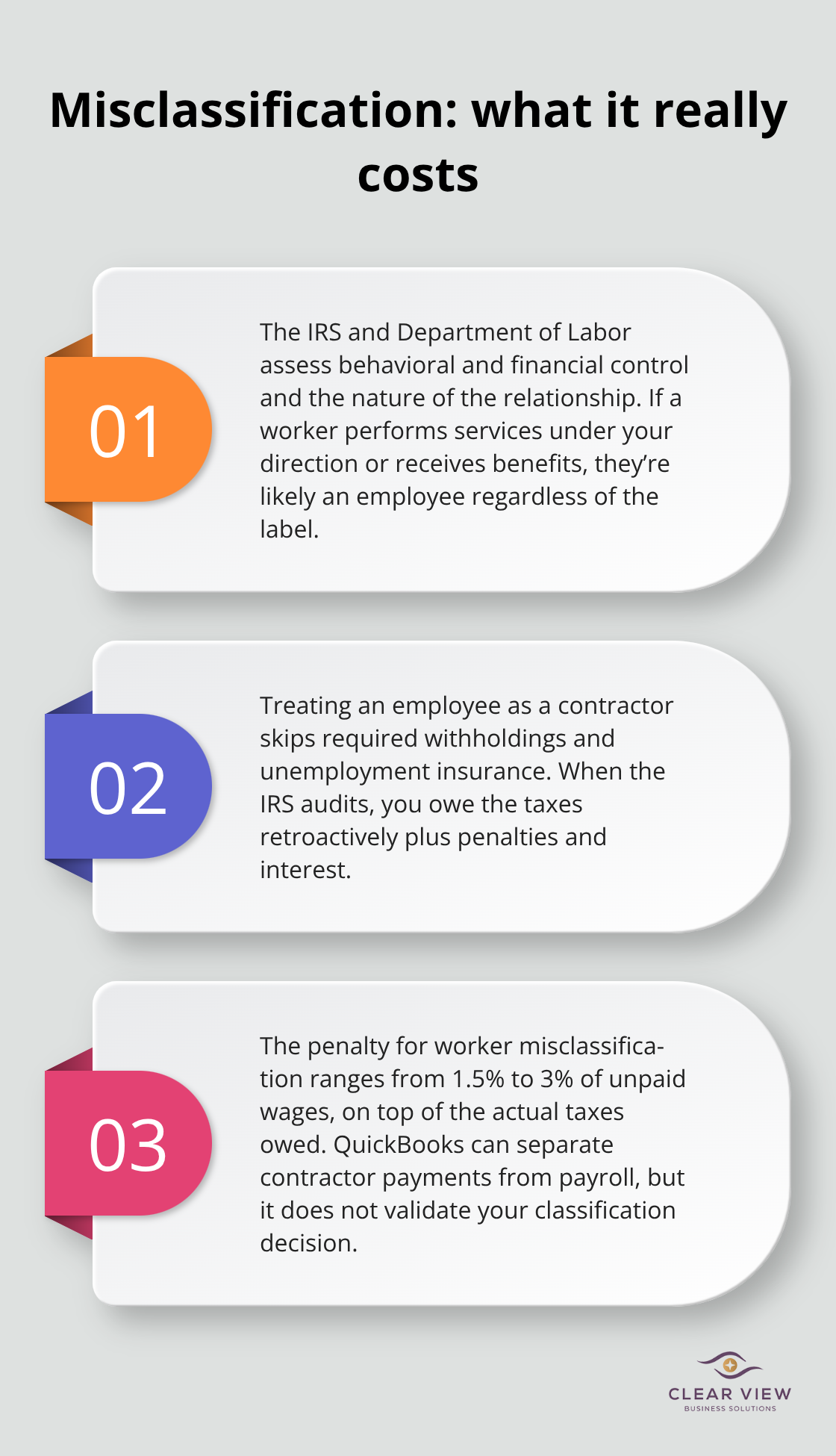
The IRS classifies workers as employees or contractors based on specific criteria, and misclassifying them as contractors when they should be employees triggers back taxes, penalties, and interest that accumulate quickly. The Department of Labor uses a test that examines behavioral control, financial control, and the relationship type-if the worker performs services regularly, works under your direction, or receives benefits, they’re likely an employee regardless of what you call them. Treating an employee as a contractor means you avoid withholding federal and state taxes, Social Security, Medicare, and unemployment insurance, but when the IRS audits your records, you owe all of it retroactively plus penalties.
The penalty for worker misclassification ranges from 1.5% to 3% of unpaid wages depending on the severity, according to IRS guidance, and that’s on top of the actual taxes owed. If you’re unsure whether someone qualifies as a contractor, QuickBooks Workforce separates contractor payments from employee payroll, but the system doesn’t validate your classification decision. Ask yourself whether the worker sets their own hours, uses their own equipment, serves multiple clients, or has a written contract defining a specific project with an end date. If you answer no to most of those questions, treat them as an employee and run them through payroll.
Your state updates tax withholding tables and rates throughout the year, and QuickBooks updates its tables quarterly, which means your withholding could lag behind actual rate changes by weeks or months. State tax agencies announce rate changes on their websites, and you’re responsible for implementing those changes in QuickBooks even if the system hasn’t updated automatically yet. For example, if your state raises its unemployment insurance rate in July and QuickBooks doesn’t reflect that change until September, you’ve underpaid employer taxes for two months and owe the difference plus potential penalties.
Check your state tax agency website quarterly, specifically looking for updates to income tax rates, unemployment insurance rates, and any new local tax requirements that affect your employees. In QuickBooks Workforce, navigate to Settings and verify that your federal and state tax rates match what your state tax agency currently publishes. Federal tax tables also change annually, and the IRS releases updated withholding tables in January, so update your federal withholding settings at the start of each year.
Monthly reconciliation of your payroll accounts against your bank statement catches underpayment or overpayment of taxes before they compound into larger problems. If you’ve underpaid taxes and discover the error months later, you’ll owe interest calculated daily from the original due date, which turns a small mistake into an expensive one. Reconciliation takes thirty minutes per month and prevents the scenario where you file quarterly taxes with incorrect amounts and later receive an IRS notice demanding payment for the difference.
Most businesses that face IRS notices or state tax corrections waited too long to spot discrepancies in their payroll records. Match every deposit and tax payment to your bank statement, and investigate any amounts that don’t align with your expectations. If you migrated data from a prior provider, reconcile the year-to-date wages and taxes that QuickBooks imported against your final records from that provider. Mismatches here will cause your W-2s and quarterly tax filings to be inaccurate.
Getting your QuickBooks payroll setup basics right from day one eliminates the scrambling that happens when errors surface during tax season. You’ve now seen how proper configuration, validation before your first paycheck, and monthly reconciliation work together to keep your payroll accurate and compliant. The mistakes we covered-misclassifying workers, ignoring tax rate changes, and skipping reconciliation-are preventable if you follow the steps outlined in this guide.
Your payroll foundation determines whether you spend your time managing payroll efficiently or fixing problems that compound over months. Start with accurate business and employee information, connect your bank account before processing paychecks, and validate everything before you run your first payroll. After that, reconcile monthly and stay alert to tax rate changes from your state tax agency.
If your payroll setup feels overwhelming or you’re unsure whether you’ve configured everything correctly, a QuickBooks ProAdvisor or payroll specialist can review your setup before your first filing deadline and prevent expensive corrections. We at Clear View Business Solutions help small business owners in Tucson navigate QuickBooks setup and payroll compliance, ensuring your financial records support growth rather than create headaches.




At Clear View Business Solutions, we know you want your business to prosper without having to worry about whether you are paying more in taxes than you should or whether your business is set up correctly. The problem is it's hard to find a trusted advisor who can translate financial jargon to layman's terms and who can actually help you plan for better results.
We believe it doesn't have to be this way! No business owner should settle for working with a CPA firm that falls short of understanding what you want to achieve and how to help you get there.
Northwest Location:
7530 N. La Cholla Blvd., Tucson, AZ 85741
Central Location:
2933 N Campbell Avenue, Tucson, AZ 85719
© 2026 Clear View Business Solutions. All Rights Reserved.
At Clear View Business Solutions, we know you want your business to prosper without having to worry about whether you are paying more in taxes than you should or whether your business is set up correctly. The problem is it's hard to find a trusted advisor who can translate financial jargon to layman's terms and who can actually help you plan for better results.
We believe it doesn't have to be this way! No business owner should settle for working with a CPA firm that falls short of understanding what you want to achieve and how to help you get there. With over 20 years of experience serving hundreds of business owners like you, our team of experts combines financial expertise and proactive communication with our drive to help each client achieve results and have fun along the way.
Here's how we do it:
Discover: We start with a consultation to understand your specific goals, what's holding you back, and what success looks like for you.
Strategize & Optimize: Together, we design a customized strategy that empowers you to progress toward your goals, and we optimize our communication as partners.
Thrive: You enjoy a clear view of your business and your financial prosperity.
Schedule a consultation today, and take the first step toward being able to focus on your core business again without wondering if your numbers are right- or what they mean to your business.
In the meantime, download, "The Business Owner's Essential Guide to Tax Deductions" and make sure you aren't leaving money on the table.