

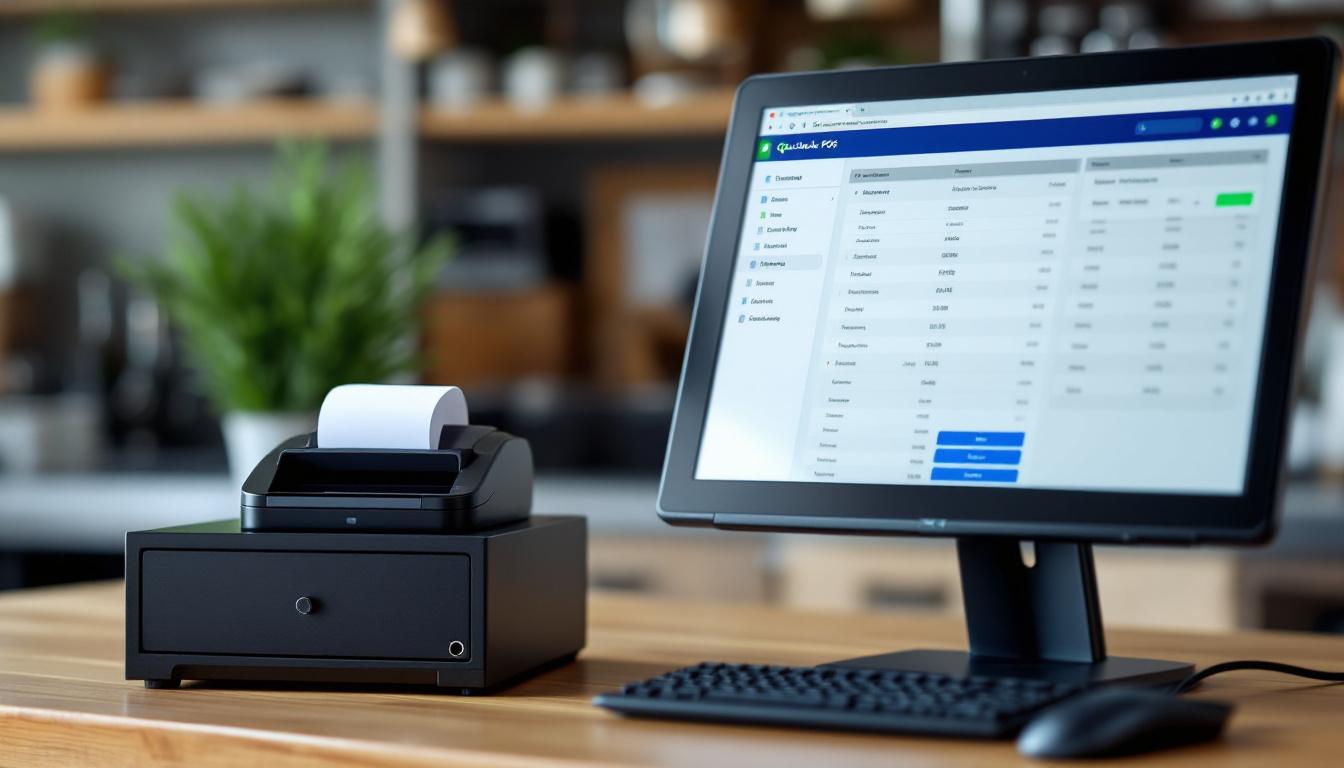
At Clear View Business Solutions, we understand the importance of efficient point-of-sale systems for businesses of all sizes. QuickBooks POS is a powerful tool that can streamline your operations and boost your bottom line.
In this guide, we’ll share essential QuickBooks POS training tips to help you master the system and make the most of its features. Whether you’re new to QuickBooks POS or looking to enhance your skills, these insights will set you on the path to success.
Start by entering your company details accurately. This includes your business name, address, tax ID, and contact information. These details will appear on receipts, reports, and other documents, so verify their accuracy. Set your fiscal year and tax rates to ensure your financial reports align with your business structure and local tax requirements.
QuickBooks POS offers extensive customization options. Explore and set preferences that match your business needs. You can choose the level of detail for your sales receipts, set default payment methods, and decide on inventory tracking methods. These preferences can significantly impact your daily operations, so select them carefully.
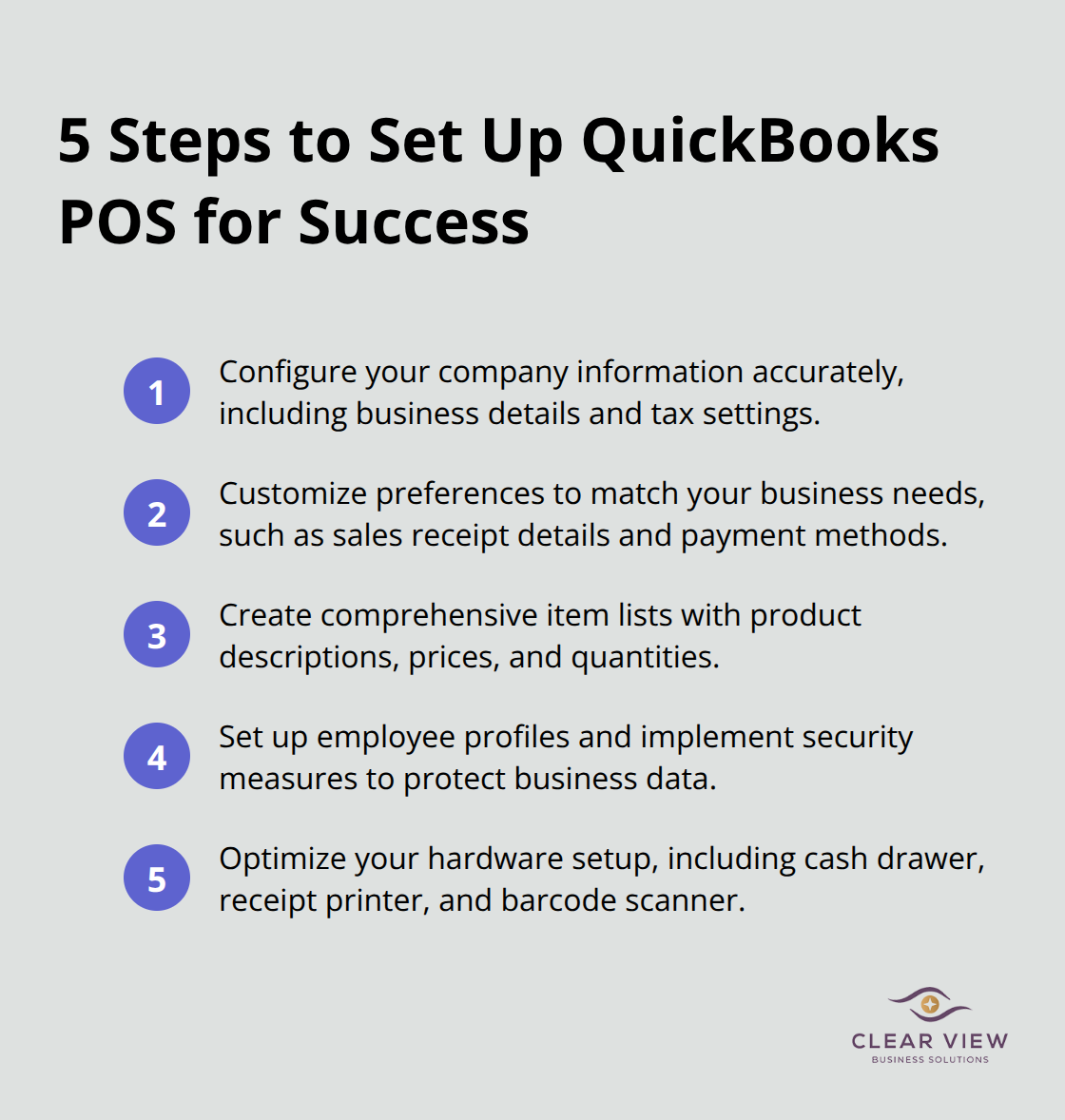
Your item list forms the core of your POS system. Set up your item list with product descriptions, prices, and quantities. For large inventories, use the built-in import feature to save time. Accurate item lists speed up sales transactions and provide valuable data for inventory management and financial reporting.
Employee management in QuickBooks POS is essential for accountability and security. Create individual profiles for each employee, assigning appropriate access levels. This might range from cashiers (who only need access to sales functions) to managers (who require full system access). Implement strong security measures, such as unique login credentials and regular password changes, to protect your business data and reduce the risk of internal fraud.
Configure your hardware to work seamlessly with QuickBooks POS. This includes setting up your cash drawer, receipt printer, barcode scanner, and card reader. Test each piece of equipment to ensure it communicates correctly with the software. A well-configured hardware setup minimizes transaction errors and improves checkout speed.
With these steps completed, your QuickBooks POS system will have a solid foundation. The next chapter will guide you through managing daily operations with your newly configured system, helping you make the most of its features for smooth and efficient business processes.
Processing sales in QuickBooks POS is straightforward. Scan items or enter them manually. The system automatically calculates taxes and totals. For cash transactions, enter the amount received, and QuickBooks POS calculates the change. For credit card payments, swipe or enter the card details.
Returns require attention to detail. Always ask for a receipt and use the ‘Return’ function in QuickBooks POS. This ensures accurate inventory updates and proper financial recording. For items without receipts, implement a store credit policy to maintain customer satisfaction while protecting your business.
Proper cash drawer management is essential for accurate financial records. Count the cash in the drawer at the start of each day and enter the amount in QuickBooks POS. Throughout the day, use the ‘No Sale’ function to record non-sale cash drawer openings (such as making change).
At shift changes, perform a ‘Paid In/Paid Out’ transaction to record any cash additions or removals. This helps track cash flow and reduces discrepancies at the end of the day. Perform surprise cash counts periodically to ensure accuracy and deter potential theft.
End-of-day reports in QuickBooks POS provide valuable insights into your daily operations. The ‘Z-Out’ report summarizes all transactions, including sales, returns, and discounts. Review this report daily to spot trends and address any discrepancies promptly.
Use the ‘Sales Summary’ report to analyze product performance and identify top-selling items. This information is invaluable for inventory management and marketing decisions. The ‘Tender Summary’ report breaks down payment methods, helping you understand customer preferences and plan cash needs.
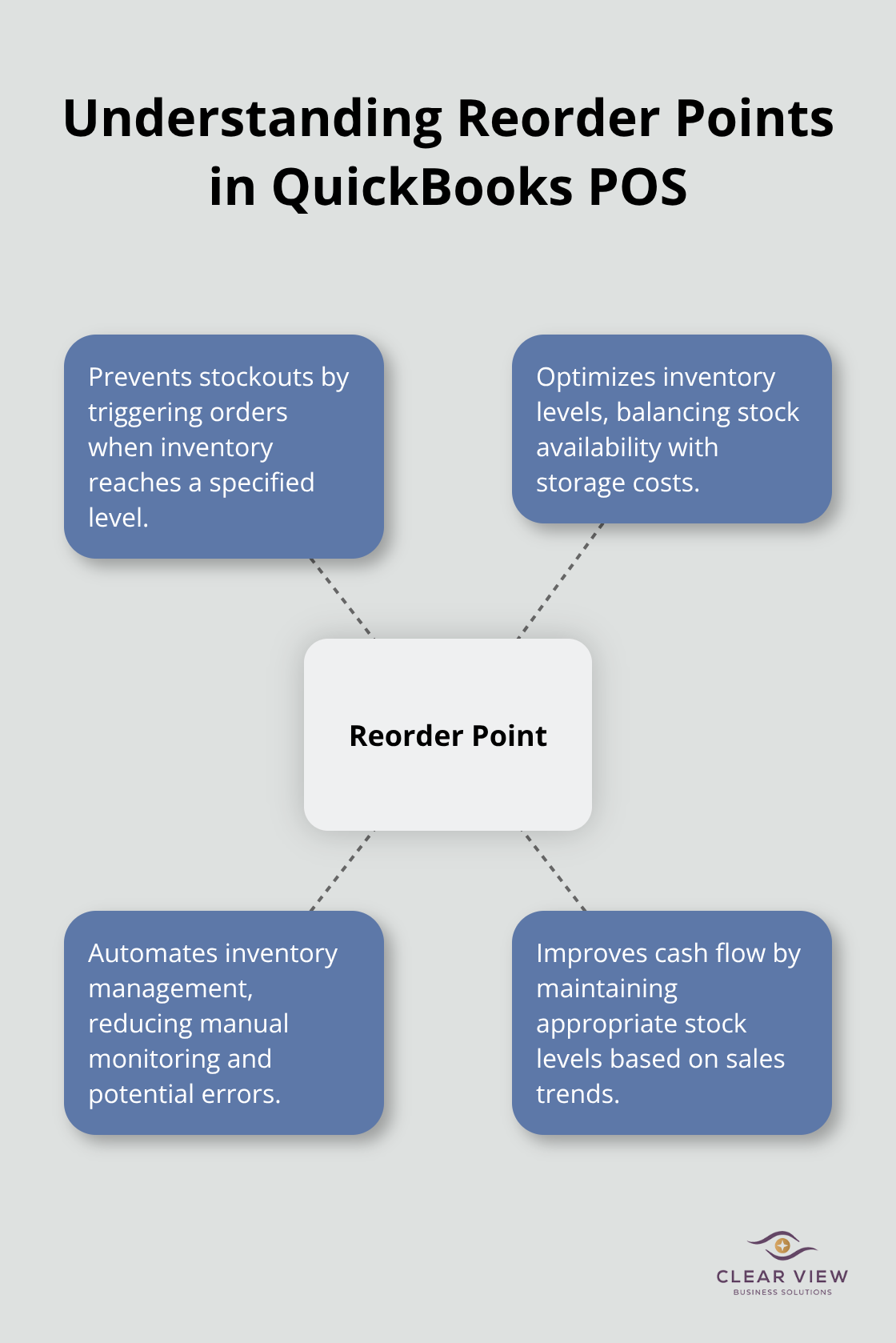
QuickBooks POS offers robust inventory management features. Set up automatic reorder points to ensure you never run out of stock. The reorder point represents the inventory level at which it’s most efficient for you to submit an inventory order to your supplier. Use the ‘Item List’ to track quantities, costs, and pricing. Perform regular physical inventory counts and reconcile them with the system to maintain accuracy.
Utilize the customer management features in QuickBooks POS to build stronger relationships. Choose a system that improves the customer buying experience – for example, by offering faster checkouts or loyalty program management. Create customer profiles to track purchase history and preferences. This data can inform targeted marketing campaigns and personalized promotions. Consider implementing a loyalty program to encourage repeat business and increase customer lifetime value.
As you master these daily operations in QuickBooks POS, you’ll find your business processes becoming more efficient and your financial insights more profound. The next section will explore advanced features that can further elevate your QuickBooks POS usage and help you unlock its full potential for your business growth.
QuickBooks POS enables the creation of detailed customer profiles, which serve as valuable tools for personalized service. Include essential information such as contact details, purchase history, and preferences when setting up profiles. This data allows you to tailor your offerings and communications effectively.
Use customer profiles to alert frequent buyers when their favorite products are back in stock or on sale. Suggest complementary items during checkout to increase your average transaction value. Train your staff to update profiles consistently and note relevant customer interactions or preferences. This practice builds a comprehensive view of each customer, leading to more meaningful engagements and increased loyalty.
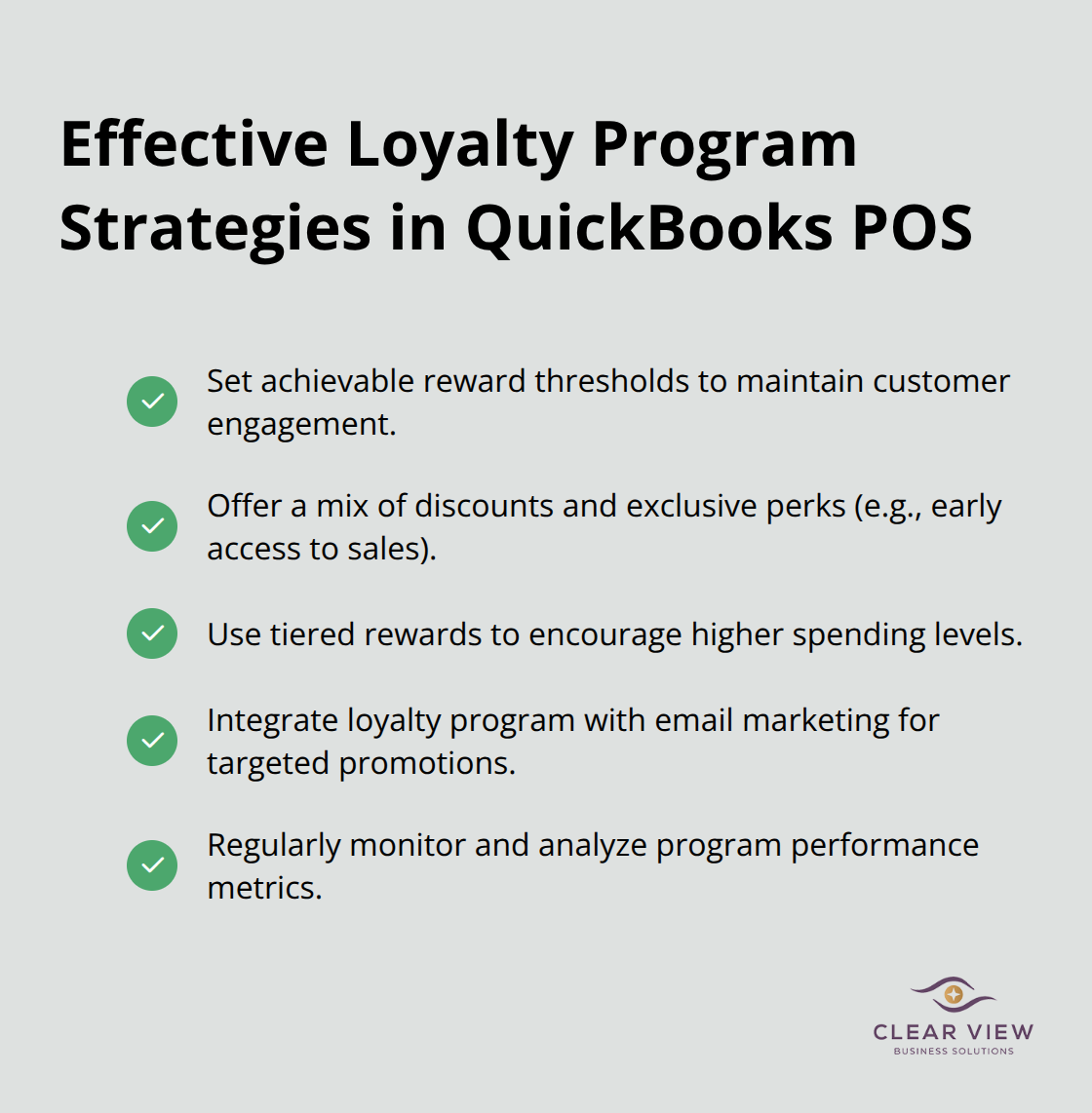
A well-designed loyalty program can boost customer retention and spending significantly. QuickBooks POS offers built-in loyalty program features that are simple to set up and manage.
Try these strategies when implementing your loyalty program:
Monitor your loyalty program’s performance regularly. Analyze metrics such as redemption rates, average spend of loyalty members versus non-members, and frequency of visits. Use these insights to refine your program and maximize its impact on your bottom line.
QuickBooks POS allows extensive customization of receipts, which can improve your customer communication and brand recognition.
Consider adding these elements to your receipts:
Customized receipts act as mini-marketing tools, reinforcing your brand and encouraging future visits.
Create custom reports in QuickBooks POS to enhance your business intelligence and decision-making processes. Adapt reports to your specific business needs for more actionable insights.
For example, a clothing store might create a report showing sales by size and color to inform inventory decisions. A cafe could benefit from a report detailing sales by time of day to optimize staffing and specials.
Review and adjust your custom reports regularly to ensure they provide valuable insights. Create new reports as your business evolves and new questions arise. This approach equips you to make data-driven decisions that drive business growth.
Customization makes QuickBooks POS work for your specific business needs. Start by setting up your item list. This includes adding detailed product information, categories, and pricing. Customize your sales screen layout to streamline the checkout process and improve efficiency.
Set up reorder points for each item in your inventory to prevent stockouts. QuickBooks POS allows you to establish minimum and maximum stock levels for each product, ensuring you always have the right amount of inventory on hand. Regularly review and adjust these levels based on sales trends and seasonality to optimize your inventory management.
QuickBooks POS transforms business operations when users master its features. The system streamlines sales processes, manages inventory precisely, and provides valuable insights into business performance. QuickBooks POS training empowers users to process transactions swiftly, track inventory accurately, and build strong customer relationships.
QuickBooks POS saves time on routine tasks, reduces errors in sales and inventory management, and enables data-driven decisions that boost the bottom line. The reporting capabilities offer a clear view of business health, allowing users to identify trends and opportunities for growth. Users should stay updated with the latest features and updates from Intuit to optimize their use of QuickBooks POS.
Clear View Business Solutions offers personalized guidance on maximizing the benefits of QuickBooks POS for businesses. Our team of experts provides QuickBooks POS training tailored to specific business needs (ensuring optimal use of this powerful tool). Users who fully utilize QuickBooks POS capabilities set their businesses up for long-term success and growth.
At Clear View Business Solutions, we know you want your business to prosper without having to worry about whether you are paying more in taxes than you should or whether your business is set up correctly. The problem is it's hard to find a trusted advisor who can translate financial jargon to layman's terms and who can actually help you plan for better results.
We believe it doesn't have to be this way! No business owner should settle for working with a CPA firm that falls short of understanding what you want to achieve and how to help you get there.
Northwest Location:
7530 N. La Cholla Blvd., Tucson, AZ 85741
Central Location:
2929 N Campbell Avenue, Tucson, AZ 85719
© 2025 Clear View Business Solutions. All Rights Reserved.
At Clear View Business Solutions, we know you want your business to prosper without having to worry about whether you are paying more in taxes than you should or whether your business is set up correctly. The problem is it's hard to find a trusted advisor who can translate financial jargon to layman's terms and who can actually help you plan for better results.
We believe it doesn't have to be this way! No business owner should settle for working with a CPA firm that falls short of understanding what you want to achieve and how to help you get there. With over 20 years of experience serving hundreds of business owners like you, our team of experts combines financial expertise and proactive communication with our drive to help each client achieve results and have fun along the way.
Here's how we do it:
Discover: We start with a consultation to understand your specific goals, what's holding you back, and what success looks like for you.
Strategize & Optimize: Together, we design a customized strategy that empowers you to progress toward your goals, and we optimize our communication as partners.
Thrive: You enjoy a clear view of your business and your financial prosperity.
Schedule a consultation today, and take the first step toward being able to focus on your core business again without wondering if your numbers are right- or what they mean to your business.
In the meantime, download, "The Business Owner's Essential Guide to Tax Deductions" and make sure you aren't leaving money on the table.